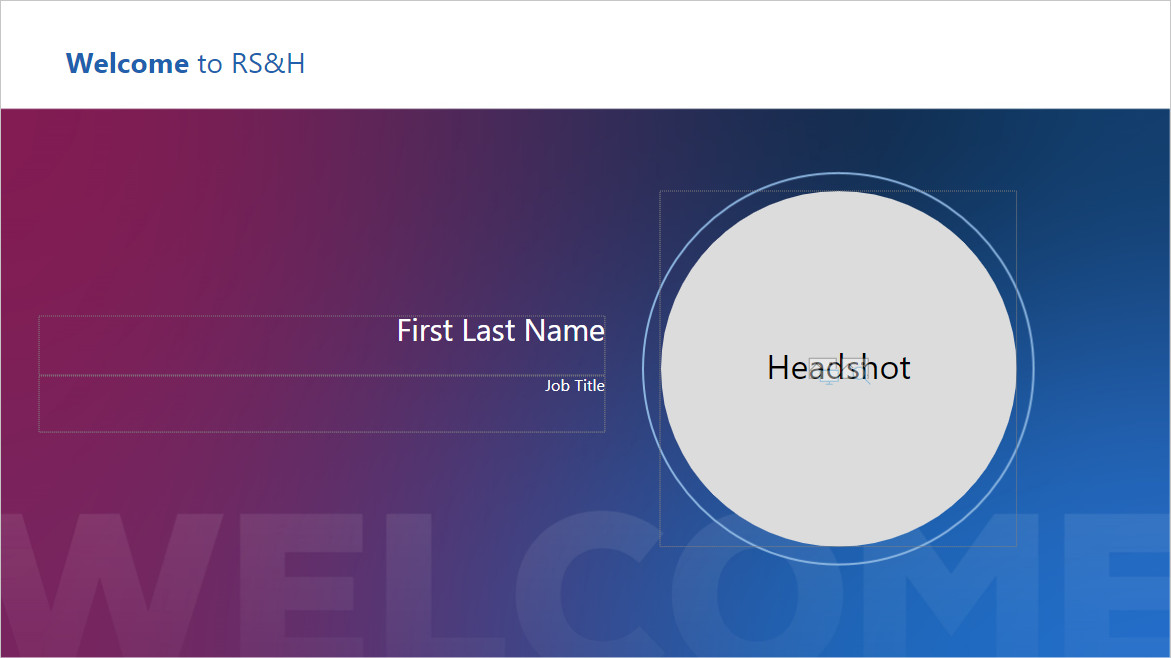
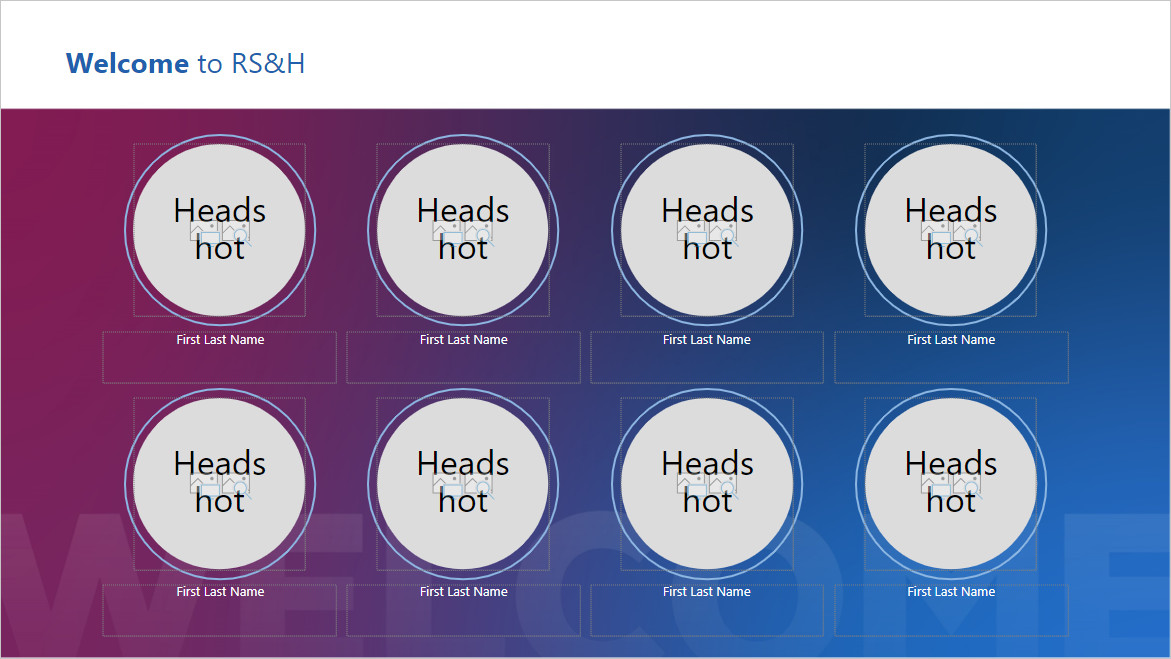
Once your lobby monitor slide idea has been approved by your manager, there are many slide template options available for your use. To view examples of all slide options, please review the template options section of the home page. When you’re ready to create a slide, all template files can be found in the office monitor template PowerPoint file.
If you have any questions, please reach out to Kim Thomson or Holly Tishfield.
How to Add a Slide
Step 1
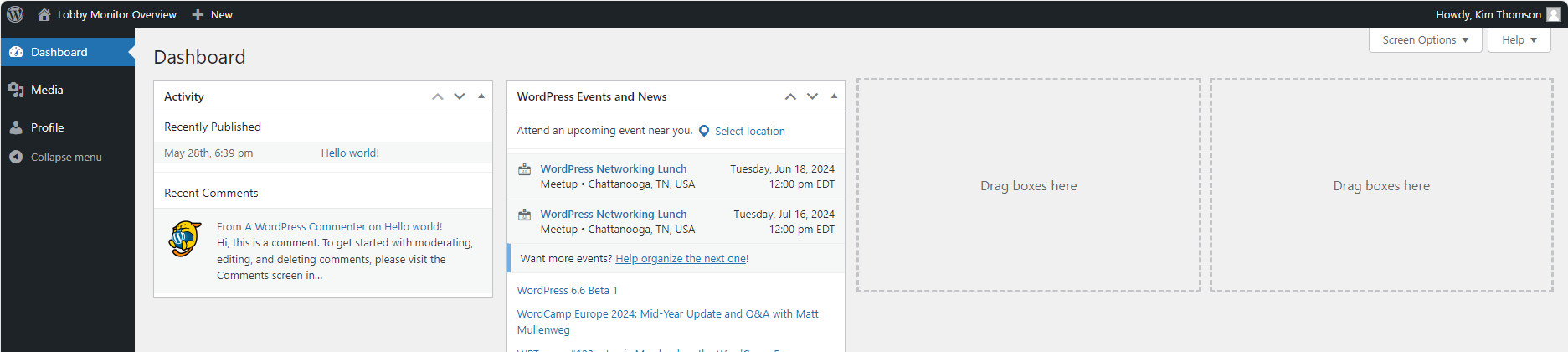
Log into the content management system using the credentials that were previously supplied to you. Upon successfully logging into WordPress, you’ll see the main dashboard.
PLEASE NOTE: These are not your RS&H login credentials.
Step 2
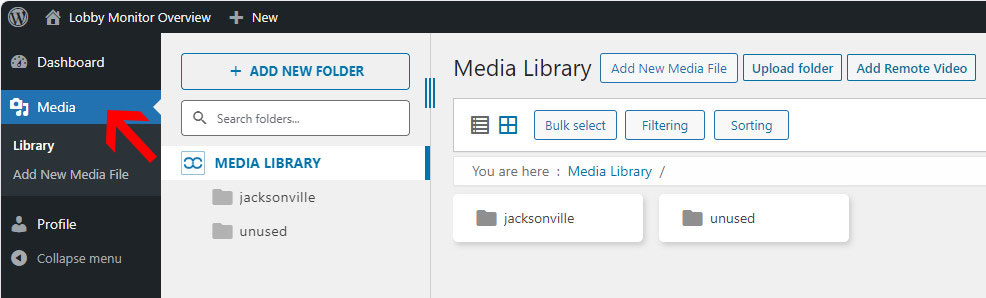
In the left side navigation, click on “Media” to access the media library. Depending on your location, your view may be slightly different that the screenshot below.
Step 3
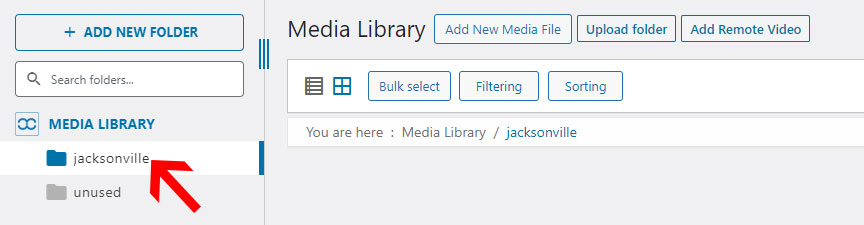
Select your local office monitor’s folder (ex: jacksonville) to open it.
Step 4
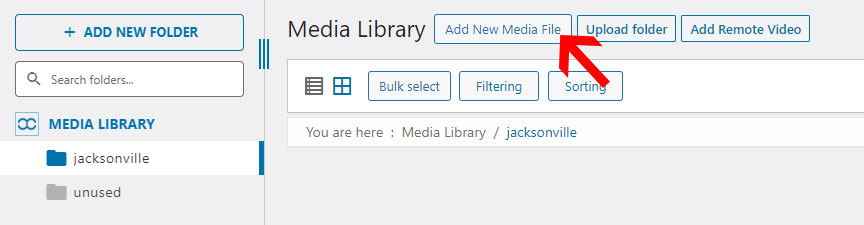
To add slide(s) to this monitor, click “Add New Media File” at the top of the folder view.
Step 5
The monitor should update automatically within about 30 minutes.
How to Remove a Slide
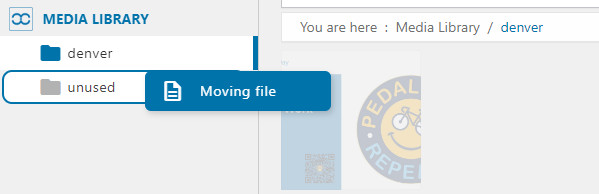
There are two options for removing a slide (depending on whether or not you may need it again in the future). You may delete the image entirely, or you may move it to the “unused” folder if you prefer to keep it.
To Permanently Remove a Slide
Step 1
Navigate to the local office folder following steps 1-3 under “How to Add a Slide.”
Step 2
Locate the slide you wish to delete, and right-click on it.
Step 3
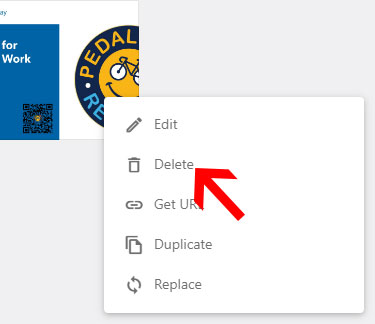
Click “Delete.”
Step 4
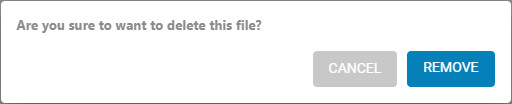
Confirm that you wish to delete the image. The monitor should update automatically within 30 minutes.
To Archive a Slide
Step 1
Navigate to the local office folder following steps 1-3 under “How to Add a Slide.”
Step 2
Locate the slide you wish to delete. Drag the slide from its current location into the “unused” folder. The monitor should update automatically within 30 minutes.